|
MAKING NavBars and dynamic menus really is surprisingly easy with Xara Menu Maker. This walk-through shows you how in just a few simple steps, you can create a professional-looking NavBar and menu.
|  |
Step 1 - Getting started
To start, select "Click to start - choose a design" from the main screen.
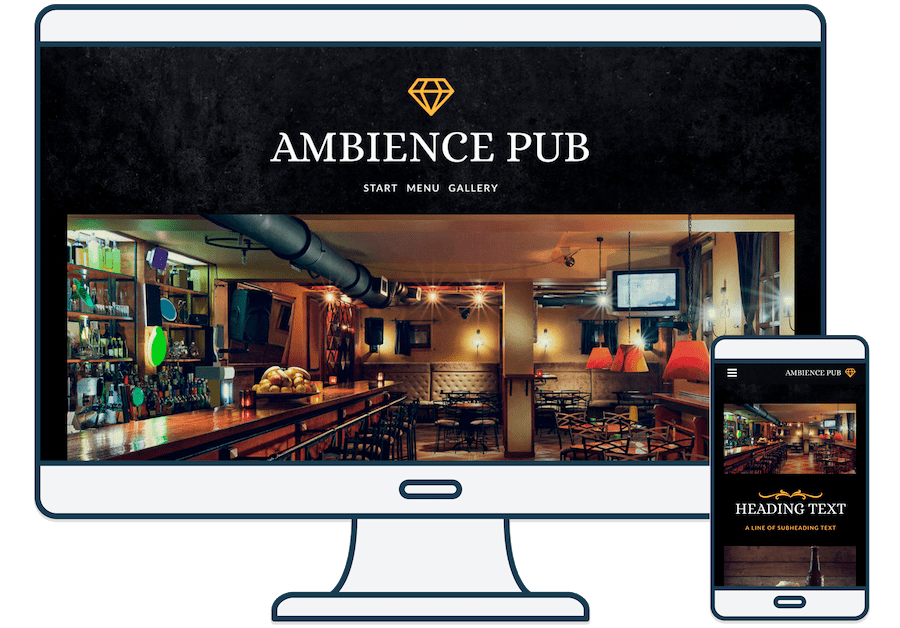
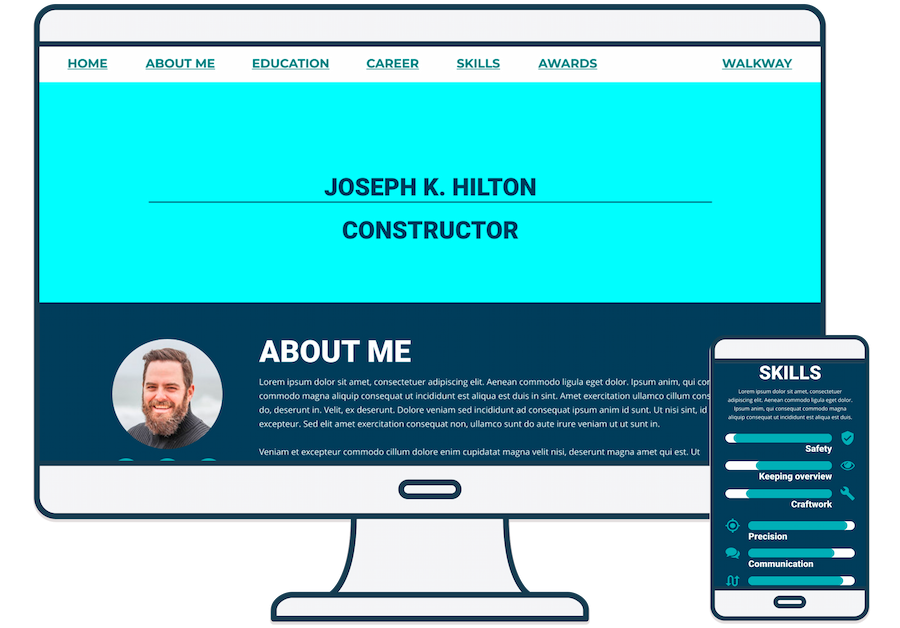
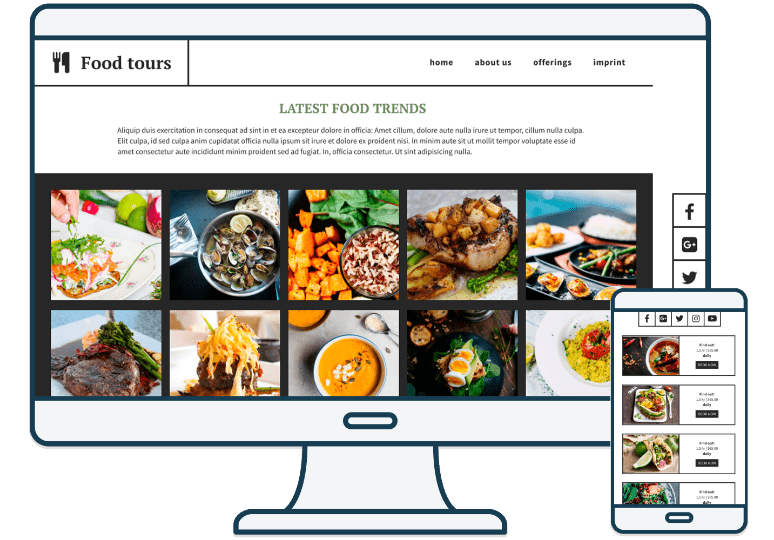
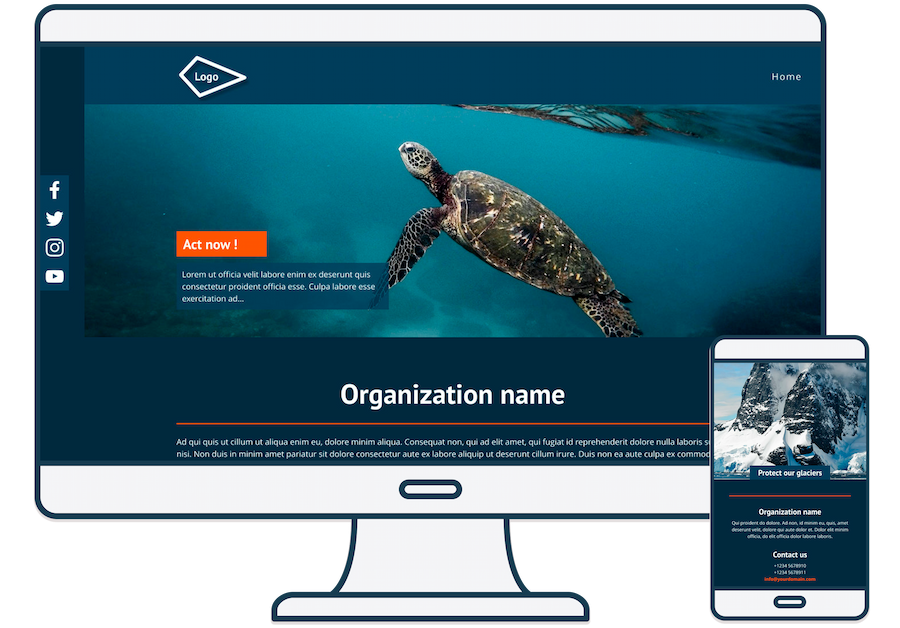
All the NavBar designs are now visible - just browse through them and select one that you like.
Templates can be edited in a number of ways - you can change the text, font, colors and size, and you can add new buttons at will. This is done by clicking the links on the left of the Menu Maker screen which open the corresponding editing dialogs. And, as you edit, your changes are displayed in real-time in the preview window.
Step 2 - Customizing the NavBar text and colors
You can customize the appearance of your NavBar by changing the text, font (including size, boldness, positioning etc) and colors of each button.
Starting with the text and font, click "Text" which opens the text editing dialog. To change the font, simply select the text to change, then select the new font. The Advanced Text Dialog gives complete control over the position of the text, tracking, line spacing and aspect ratio.
Changing the colors is just as easy. Simply click "Color", select the part of the graphic to change (button, text, outline, etc), then choose the new colors. It's the same procedure for all of the elements of a graphic.
Step 3 - Adding extra buttons and menus
To add extra buttons, change the button text and create new menus, click "NavBars".
To create a New button, simply double-click the blue "Click to Add Button" text and type your button text. A new button will automatically be created. You can do the same to create menus and sub-menus. At any time, you can re-arrange the ordering of the buttons or the menus simply by dragging and dropping them to a new location, or you can delete them by selecting the button or menu and clicking "Delete".
To change the button text, just double-click and simply type in the new text. URLs, target windows and Alt text can be added in the same way, simply double-click and type.
Step 4 - Customizing Menus
The controls for the menu text and behavior are located in the Menu Properties area. Here, you can set the menu font (as a brief technical aside, the text on menus is different from the text on buttons. The buttons in NavBars are graphics, whereas the menus are purely HTML - which means that the fonts you can use for a menu are limited to a short list of "browser-safe" fonts, which are shown in this drop-down menu). You can also set the font-size, weighting and style (bold or italic), menu spacing, the direction the menu will open, how fast it appears and whether you want it to be semi-transparent.
Step 5 - Exporting the finished NavBar
Once you have completed the changes to your NavBar, it's time to export it. To save a NavBar and menu, just select the "Save" option. Menu Maker optimizes the graphics to be as small as possible and displays the size in both pixels and kb. The "Advanced Save Dialog" also has options to change the number of colors, dithering and transparency. It's interactive and instant - no more trial and error!
You can preview a NavBar in a browser at this point if you want to, or simply export it. It will be automatically saved with all the necessary HTML and Javascript.
And that's it, a custom NavBar with menus and it only took a couple of minutes.
|